> For the complete documentation index, see [llms.txt](https://guide.swiftxr.io/llms.txt). Markdown versions of documentation pages are available by appending `.md` to page URLs; this page is available as [Markdown](https://guide.swiftxr.io/how-to/how-to-publish-your-first-project-with-swiftxr.md).
# How to Publish Your First Project with SwiftXR
Learn how to publish your first project with SwiftXR
Have you ever been in a what I ordered VS what I got situation? That is the height of online shopping distrust and your customers shouldn’t have that experience with your brand.
With SwiftXR, you can close that gap by giving prospective buyers a full 360 degree view of your product, or make interactive experiences that allow them to trust what they are buying.
So, whether you’re a Shopify merchant looking to showcase products in 3D, an educator bringing lessons to life, an art exhibitor reaching global audiences, or a real estate company offering virtual property tours, SwiftXR makes creating and publishing immersive experiences easier than ever.
In this guide, we’ll walk you through how to publish your first project with SwiftXR in 6 easy steps. Let’s get into it.
## Step 1: Sign up or Log in
Start by creating a free account on the SwiftXR page and [sign in](https://home.swiftxr.io/) as an old user or start for free as a new user.
## Step 2: Choose Your Project Type
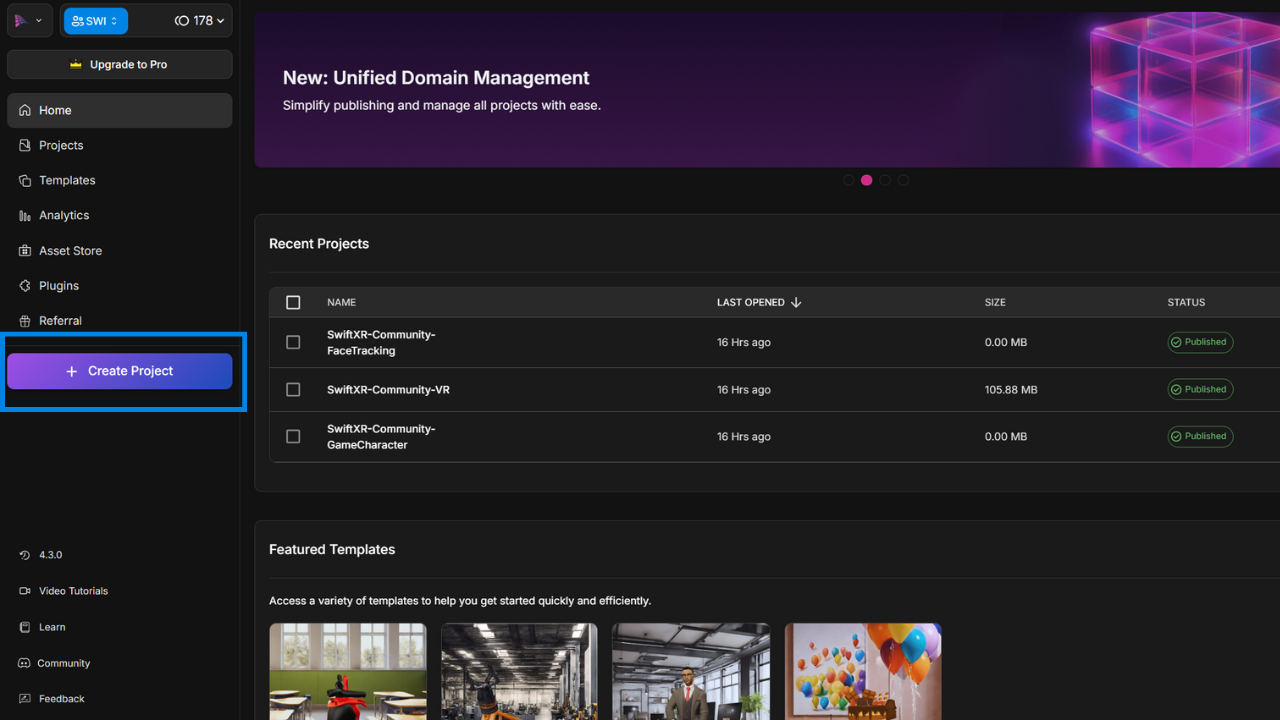
Next, click the “Create Project” tab to go to the canvas where you will create your 3D, AR/VR experience.
You can use it for various projects depending on your needs, from XR product demo, interactive educational content, 3D property tour, virtual art gallery, etc. To make things easy, you can choose from our pre-built templates and start building.
## Step 3: Upload Your Assets
If you decide to use your product instead of using pre-build templates, on the SwiftXR editor > select components > select any of the components from Augmented Reality, Virtual Reality, Standalone 3D Viewer, Face Tracking, Image Tracking, depending on what you want to create.
Then upload the image you want to work with from your device:
* Upload a 3D model file from your device
* Explore our Model Library with ready-to-use 3D Models
* Use SwiftXR image converter
* Order a custom 3D model
Ensure the file format and size align with the SwiftXR requirements to ensure a smooth view and loading on any device.
## Step 4: Customize Your XR Experience
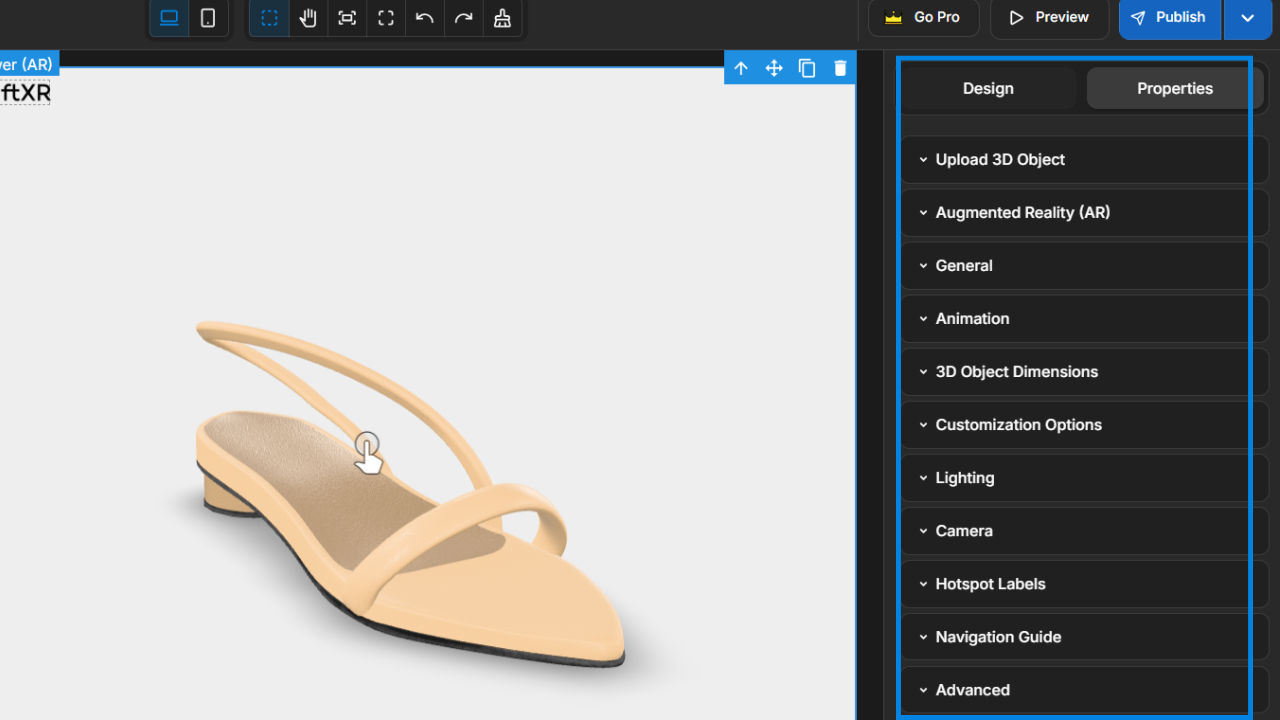
Once assets are uploaded, it is time to play around by creating various immersive experiences on the object using the Design > Properties Tab.
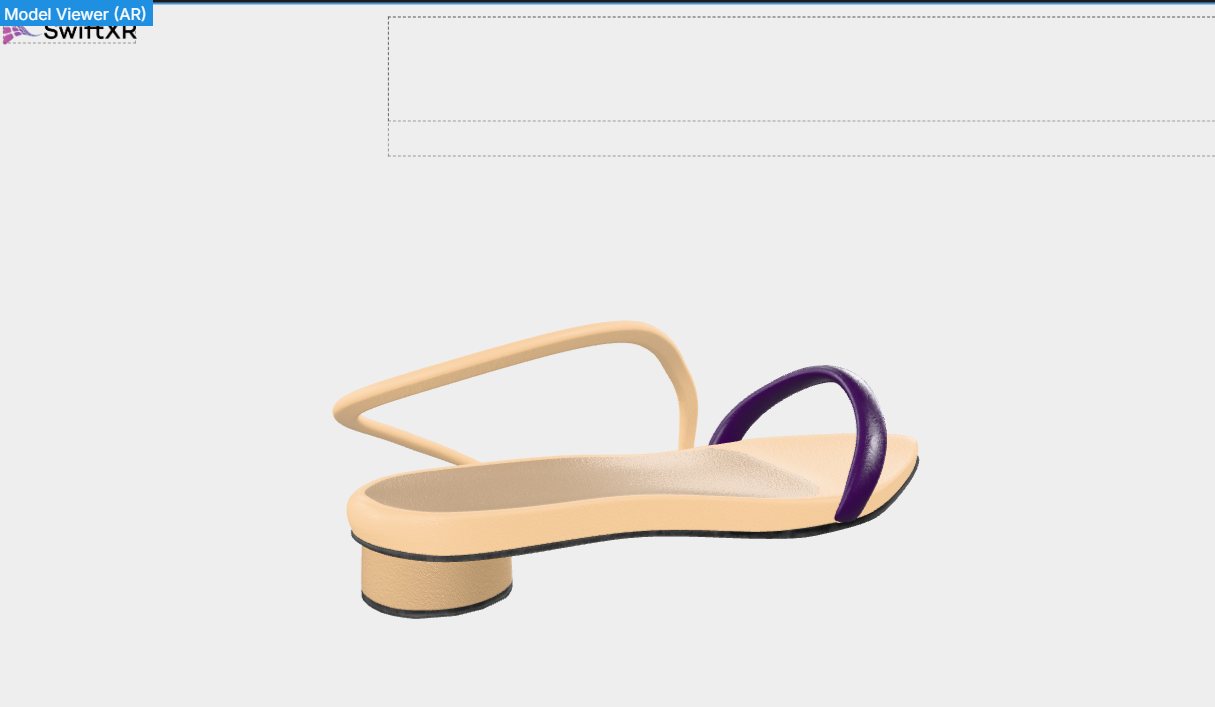
You can include hotspots to highlight key product features, change the colours, and other elements as you wish. However, ensure you are not overloading your project with too much experience to avoid overwhelm.
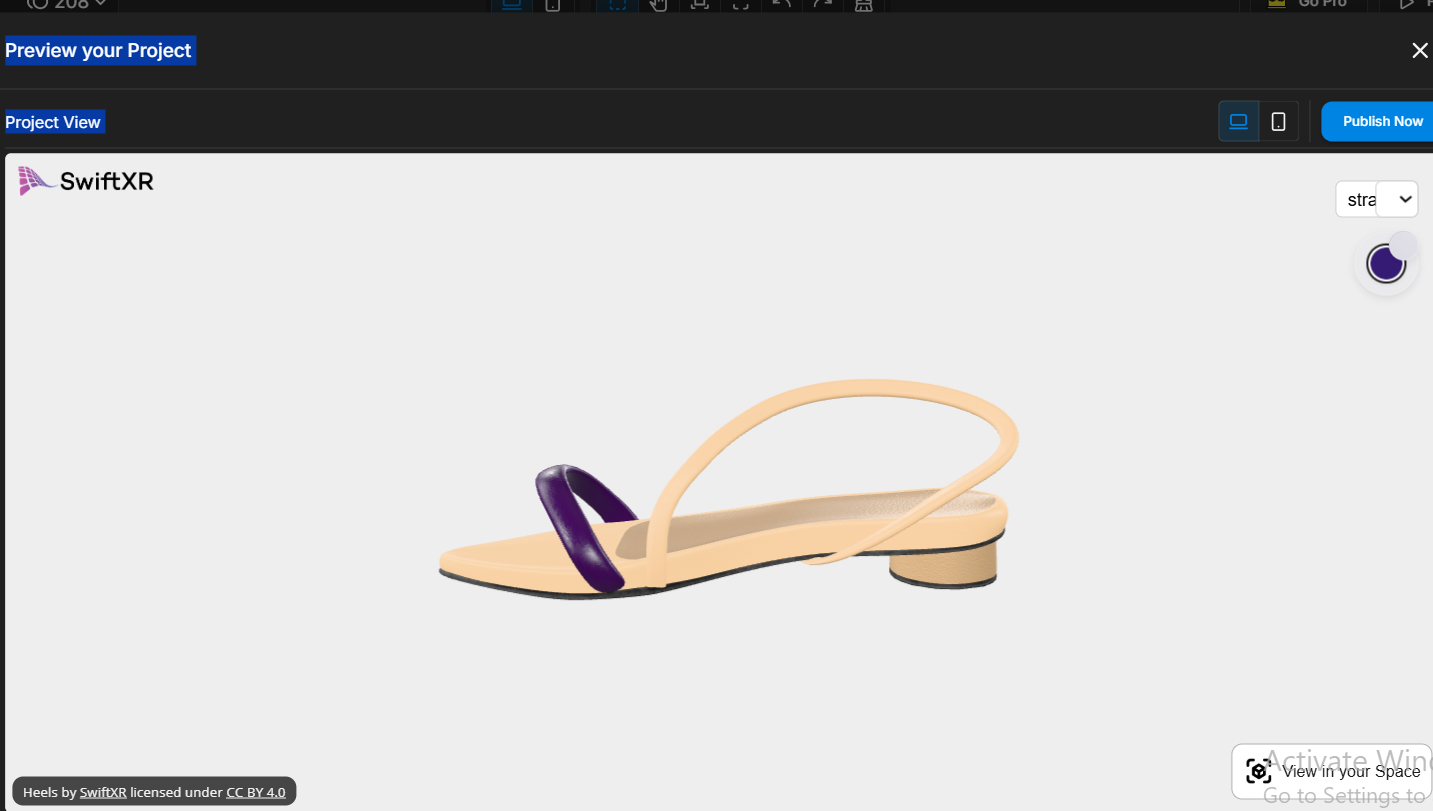
## Step 5: Preview Your Project
When you are done creating your immersive experience, do a quick preview before publishing to see how it looks on various devices from mobile to desktop to ensure everything is set to give your users the best experience regardless of the device they use.
## Step 6: Publish Your Project
Now, it’s time to go live and you can choose from multiple publishing options, which include sharing a direct link, embedding it on your website, generating a QR code, integrating directing on your online store.
With SwiftXR, it is easier than ever to create immersive product experiences that look great across multiple devices without the heavy cost of getting a 3D artist, coding or other high XR publishing costs.
### Start Publishing
With SwiftXR, you can engage your customers, users or learners more interactively giving them immersive experiences with your products or objects. [Sign up and publish your first project](https://home.swiftxr.io/) today - for FREE!