> For the complete documentation index, see [llms.txt](https://guide.swiftxr.io/llms.txt). Markdown versions of documentation pages are available by appending `.md` to page URLs; this page is available as [Markdown](https://guide.swiftxr.io/plugins/zoho-commerce.md).
# Zoho Commerce
Add or embed 3D, Augmented Reality (AR), and Virtual Reality (VR) content/design to your Zoho Commerce
### Introduction
SwiftXR is a powerful platform for creating and sharing interactive 3D, augmented reality (AR), and virtual reality (VR) experiences on the web. With the SwiftXR (3D/AR/VR) Integration for Zoho, you can easily integrate SwiftXR Projects into your [zoho commerce](https://go.zoho.com/4si), enabling you to create immersive and interactive web experiences.
Creating a Project in SwiftXR
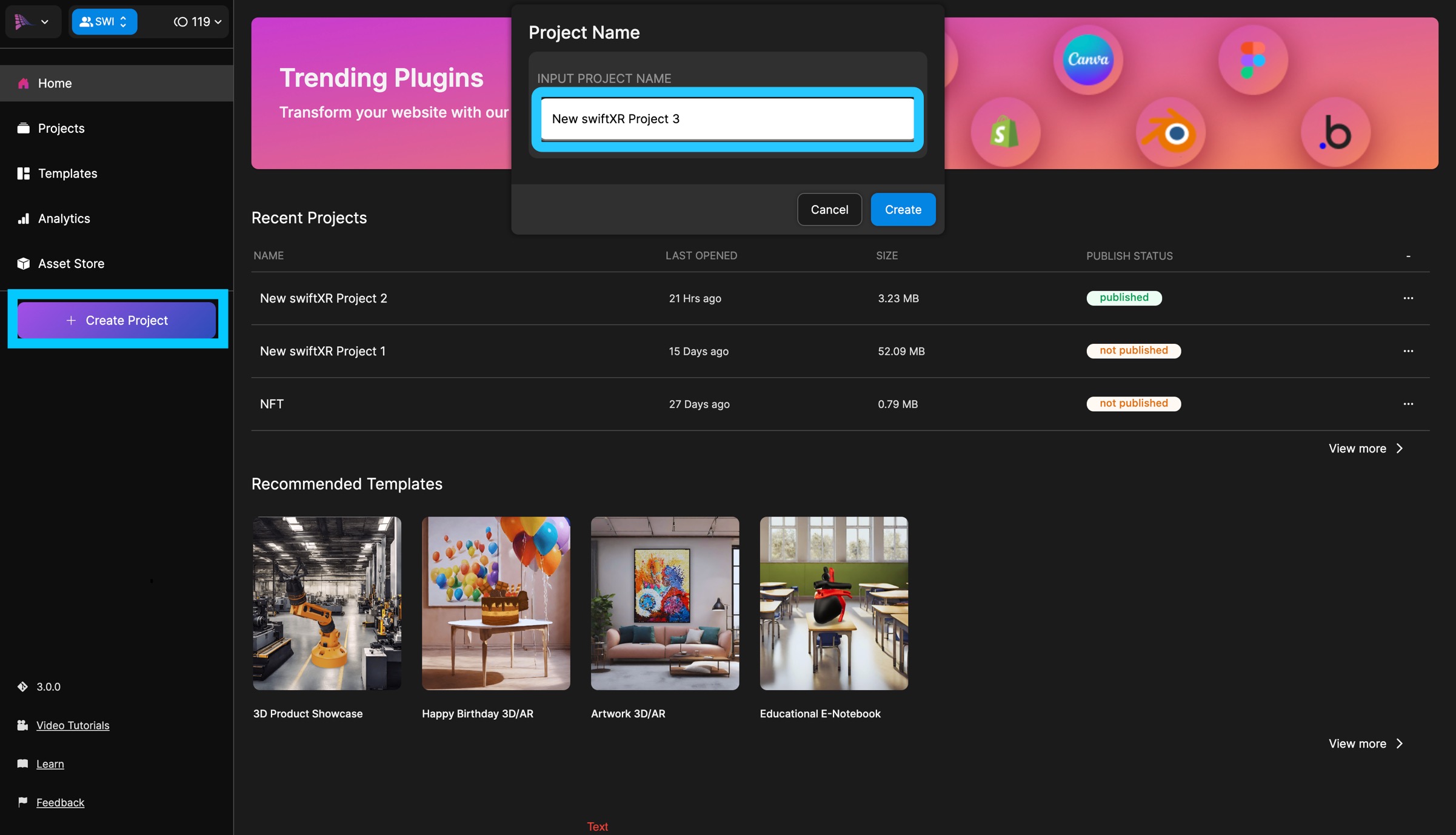
* Navigate to the SwiftXR Hub: Begin by visiting the [SwiftXR Hub](https://swiftxr.io/hub).
* Initiate Project Creation: Once on Hub, click the "Create Project" button and enter your desired project name.
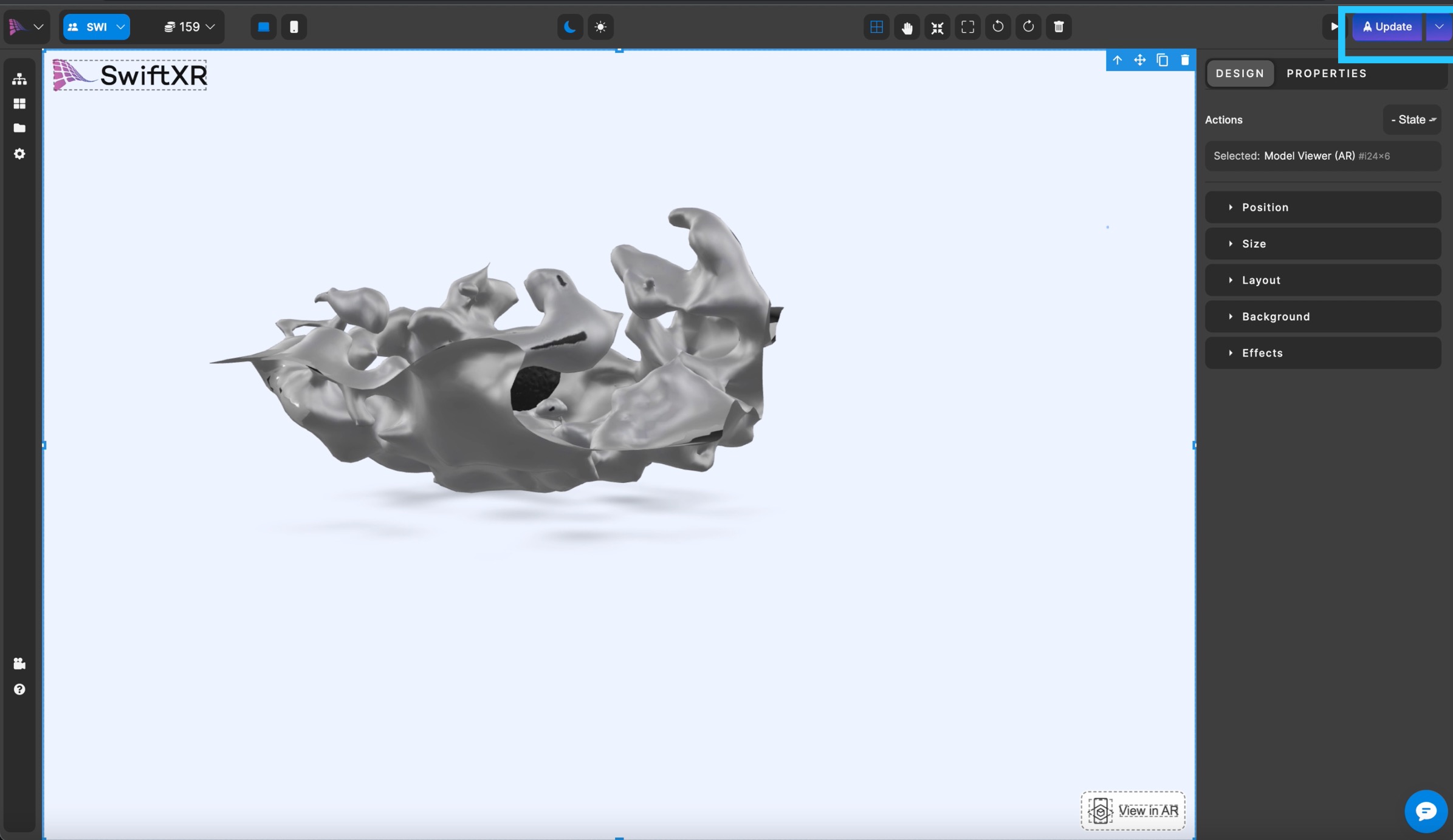
* Design and Develop: Utilize the intuitive editor to effortlessly add and customize SwiftXR components, bringing your 3D vision to life.
### Publishing Your SwiftXR Project
Utilize the editor to create your 3D vision using the SwiftXR components. Once satisfied with your creation, press the "Publish" or "Update" button to make your project live.
### Copy Embed Code
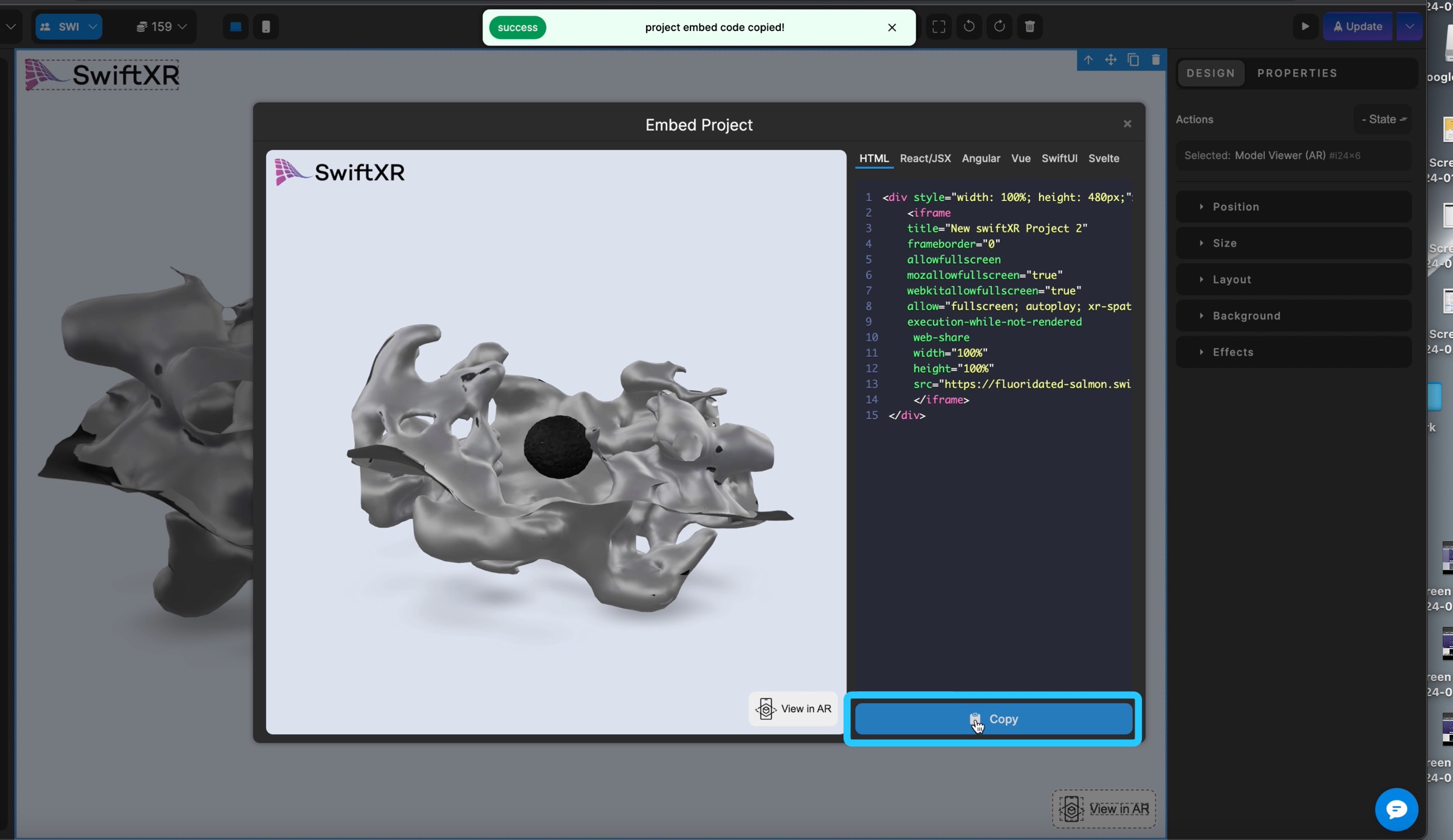
After publishing, click the dropdown button beside the "Update" button and select "Share." Within the Share modal, click the "Copy Embed" button to copy the embed code for your project.
### Integrating SwiftXR into Zoho Websites
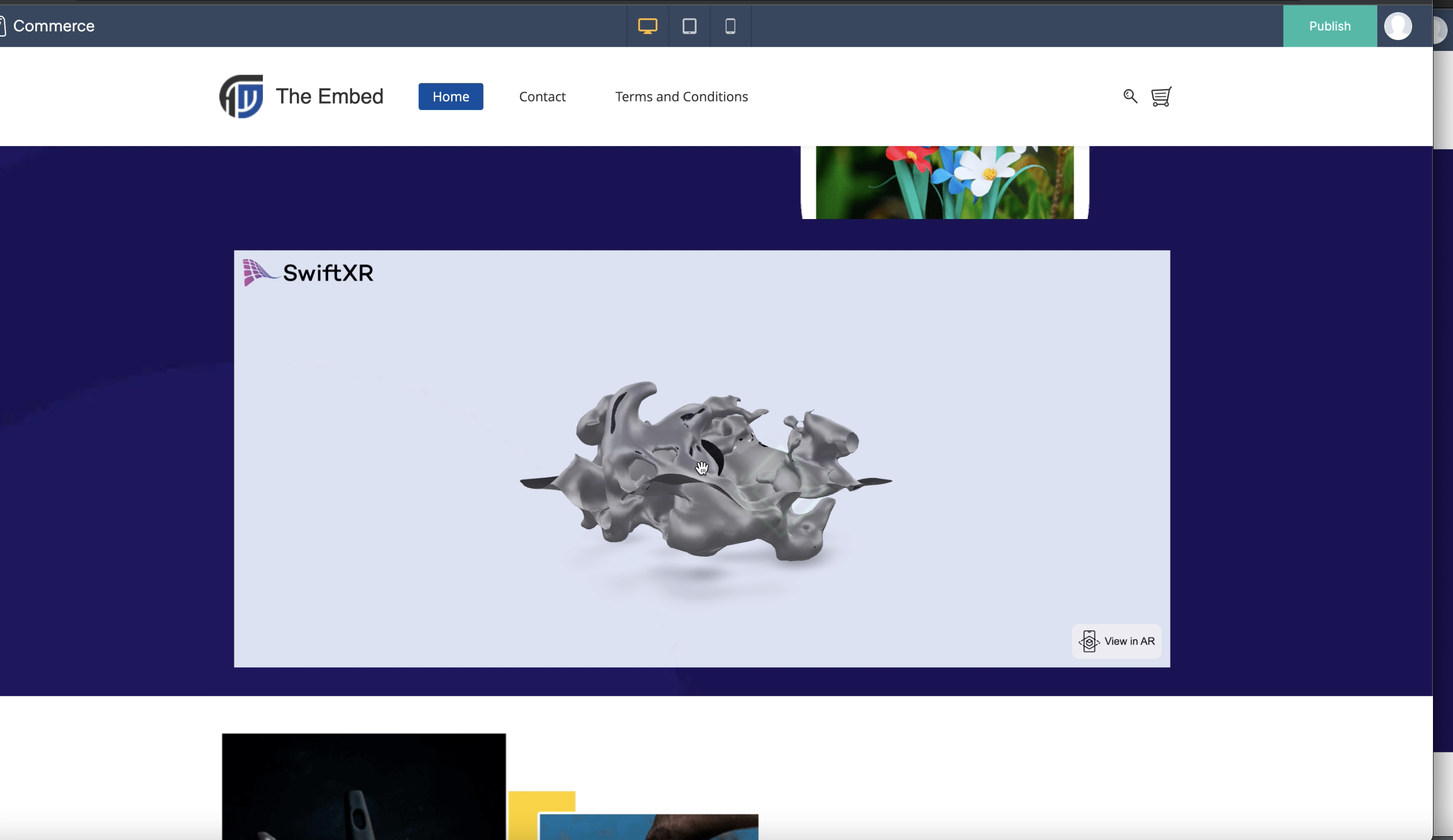
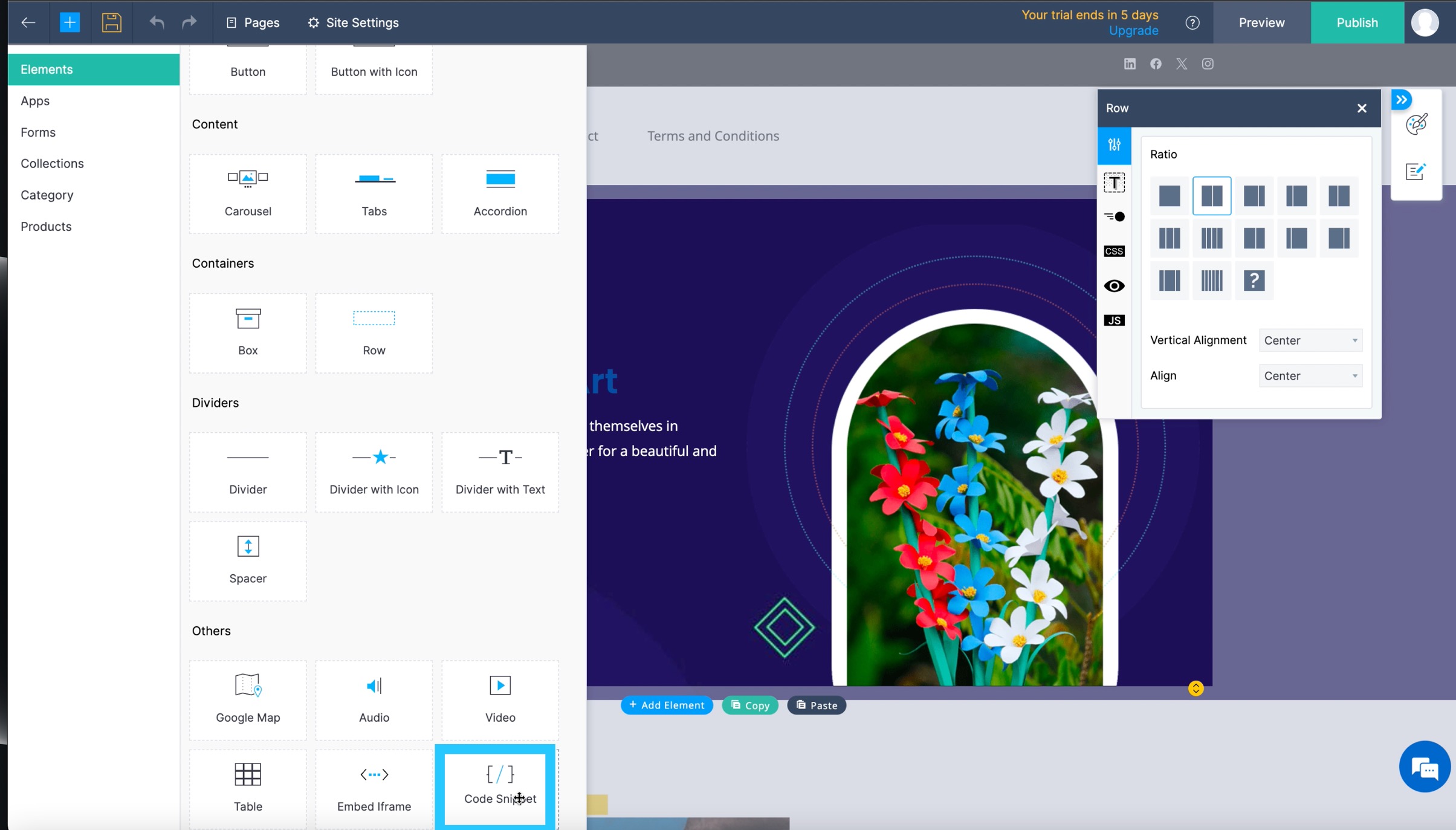
* To get started, just drag and drop the Custom HTML icon from the Elements section to the crafting area
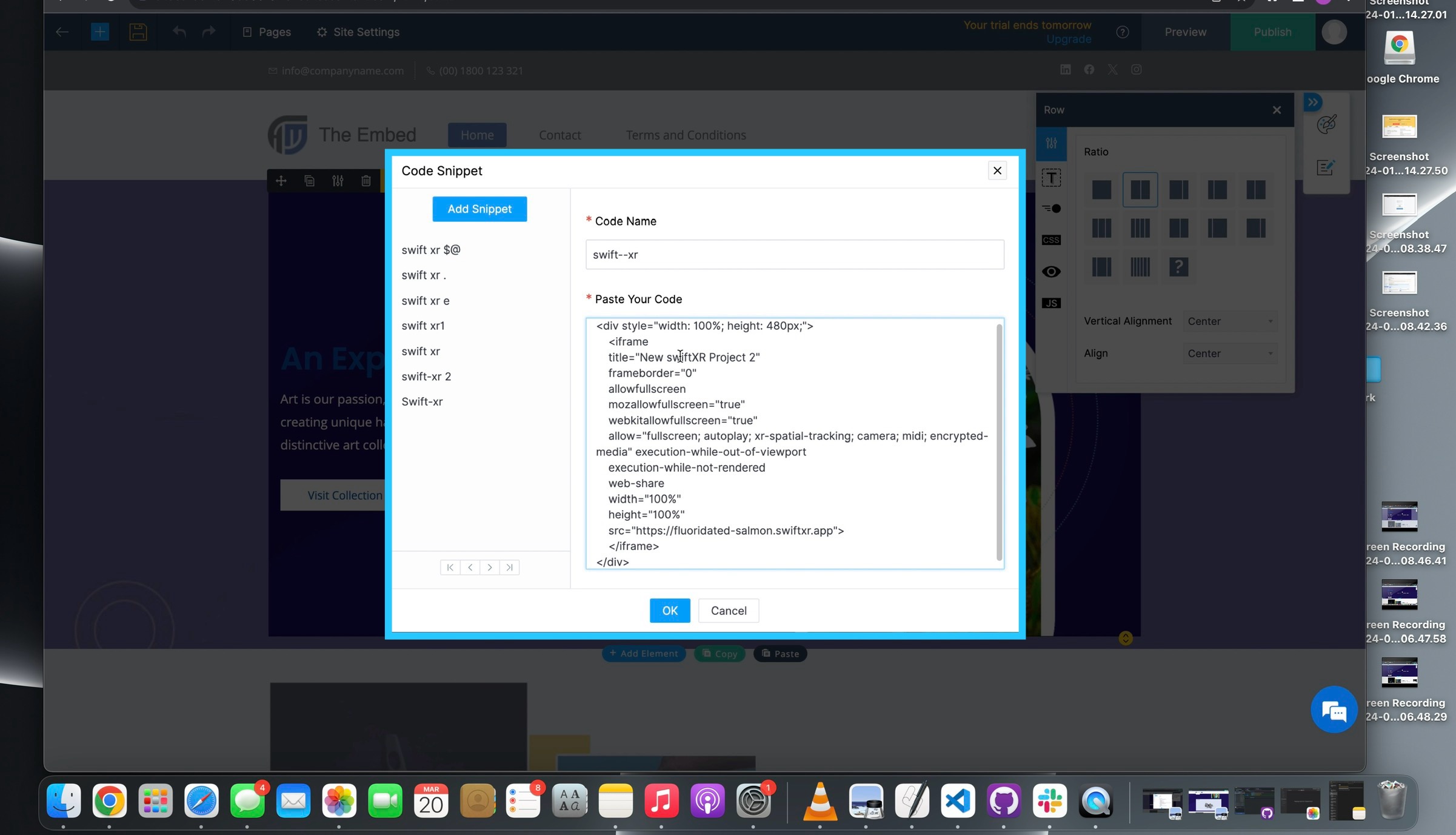
* Insert the desired HTML tags and fill in the HTML Code label field, afterwards, click the Embed Code button.
* Click the Save button once all the desired changes are made
### Viewing your scene in the Web, VR or AR
Save and publish the [Zoho Commerce](https://go.zoho.com/4si) and view the link on any device to explore it immersively.
### Conclusion
By integrating SwiftXR with Zoho, you can seamlessly blend 3D elements into your web prototypes, creating more engaging and interactive experiences for your users. Explore the possibilities of using SwiftXR to enhance your [Zoho Commerce ](https://go.zoho.com/4si) prototypes and bring your ideas to life in an immersive and interactive way.