> For the complete documentation index, see [llms.txt](https://guide.swiftxr.io/llms.txt). Markdown versions of documentation pages are available by appending `.md` to page URLs; this page is available as [Markdown](https://guide.swiftxr.io/plugins/hubspot-cms.md).
# HubSpot CMS
Add or embed 3D, Augmented Reality (AR), and Virtual Reality (VR) content/design to your HubSpot website.
### Introduction
SwiftXR is a powerful platform for creating and sharing interactive 3D, augmented reality (AR), and virtual reality (VR) experiences on the web. With the SwiftXR (3D/AR/VR) Integration for HubSpot CMS, you can easily integrate SwiftXR Projects into your Hubspot webistes, enabling you to create immersive and interactive web experiences.
### Creating a Project in SwiftXR
* Navigate to the SwiftXR Hub: Begin by visiting the [SwiftXR Hub](https://swiftxr.io/hub).
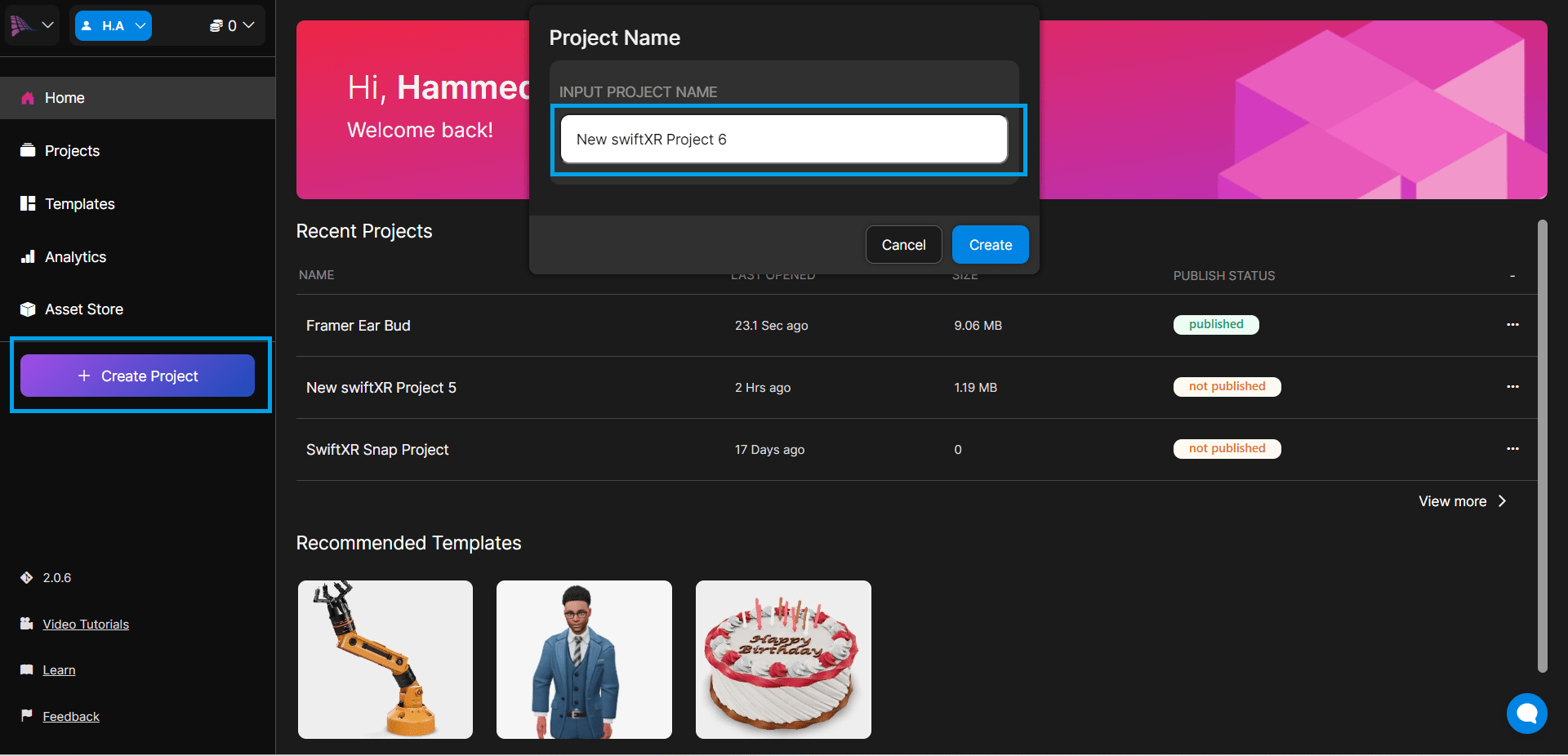
* Initiate Project Creation: Once on Hub, click the "Create Project" button and enter your desired project name.
* Design and Develop: Utilize the intuitive editor to effortlessly add and customize SwiftXR components, bringing your 3D vision to life.
### Publishing Your SwiftXR Project
Utilize the editor to create your 3D vision using the SwiftXR components. Once satisfied with your creation, press the "Publish" or "Update" button to make your project live.
### Copy Embed Code
After publishing, click the dropdown button beside the "Update" button and select "Share." Within the Share modal, click the "Copy Embed" button to copy the embed code for your project.
### Integrating SwiftXR into Hubspot CMS Websites
* Navigate: Launch HubSpot CMS and open the website where you want to integrate your 3D/AR/VR project.
* Copy the embed Html Code from SwiftXr.
* Import the Rich Text Editor module
* Click on Edit in Expanded View
* Click on Insert on the Rich Text Editor
* Paste Embed Code: Seamlessly integrate your SwiftXR project by pasting the copied embed code into the HTML field within the Editor.
* Preview and Insert.
### Viewing your Scene in the Web, AR or VR
Save and publish your HubSpot website and view the link on any device to explore it immersively.
### Conclusion
By integrating SwiftXR with HubSpot you can seamlessly blend 3D elements into your web prototypes, creating more engaging and interactive experiences for your users. Explore the possibilities of using SwiftXR to enhance your HubSpot Websites and bring your ideas to life in an immersive and interactive way.

.png?alt=media&token=8c8dadd3-6e29-4a3c-9521-cf9094360533)


